Signera Knowledgebase
My Sign shows error code "002" or says "THIS MESSAGE SHOULD DISAPPEAR IN FIVE MINUTES OR LESS"? or is showing just a black background (on players from 2014 or older)
If you are seeing the following message on screen, then this article is for you.
You may also just see a black background if your media player is from 2014 or older.
The message should show:
1) Signera's logo
2) A message that says: THIS MESSAGE SHOULD DISAPPEAR IN FIVE MINUTES OR LESS
3) At the very bottom you should see "CODE 002"
2) A message that says: THIS MESSAGE SHOULD DISAPPEAR IN FIVE MINUTES OR LESS
3) At the very bottom you should see "CODE 002"
An example/copy of this message is here:
http://manage.signera.net/downloads/graphic_black-screen.png
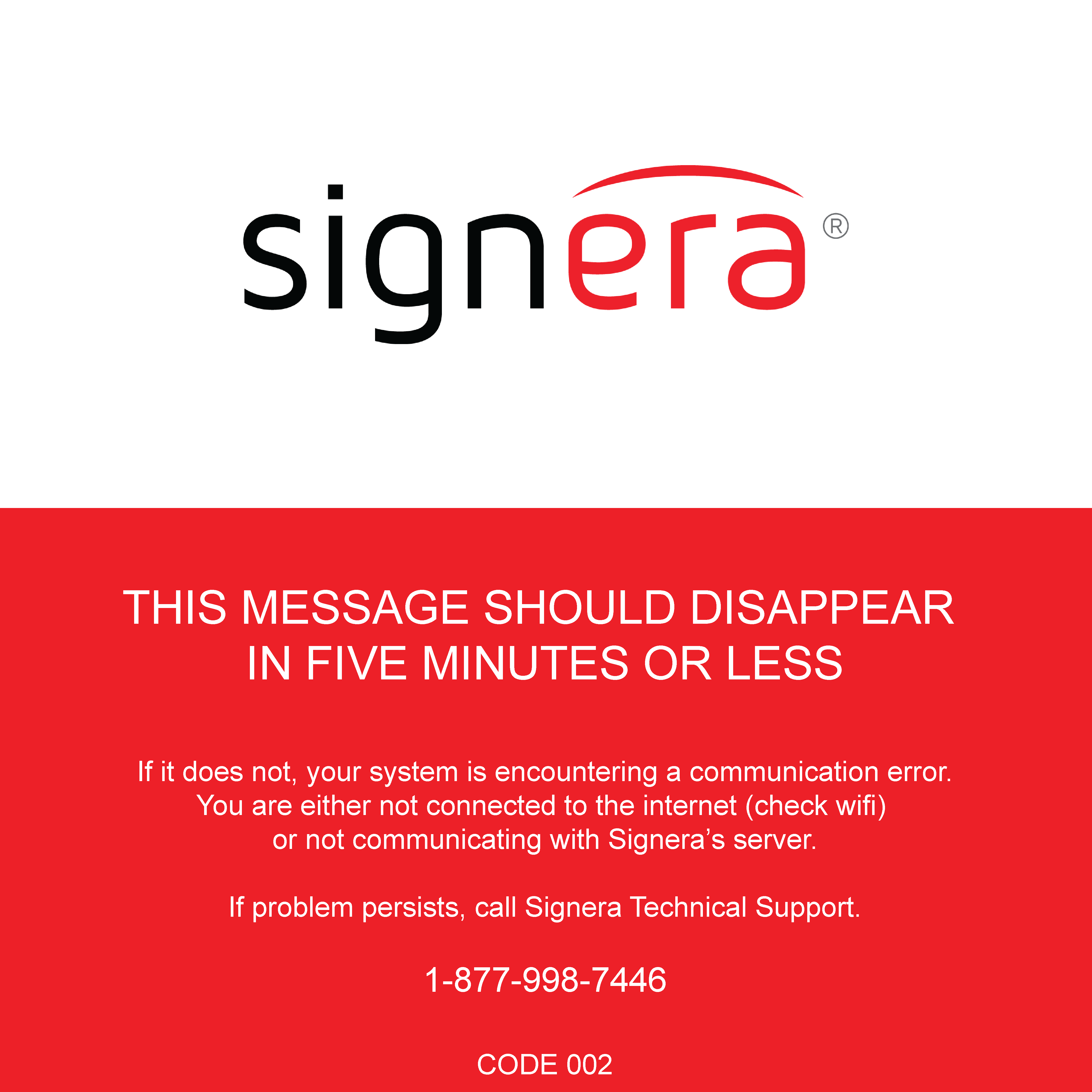
What is this message?
This graphic is just a background picture on your media player. It is not actually being presented to display or pop up by Signera. Again its just a normal background picture (like a "rolling hills" or "sand dunes" you sometimes see in the background on people's computers).
Your media player is a Windows 7 or Windows 10 device. This graphic was added to assist customers in understanding that the sign software is NOT displaying. Before we implemented this graphic, we simply had a black background, leading customers to wonder if any video output was coming out of the media player, if the TV was actually on, etc. We added this graphic to hopefully minimize confusion.
Why is it happening?
This graphic is always displayed in the background of your computer. It should only be visible when your media player first boots (or while it's shutting down).
Typically this message will disappear because Signera's sign software starts overtaking the whole screen (so the above error message is no longer visible).
Sometimes Signera's sign software can be prevented from starting, leaving this error message on the screen for an extended period. The reason this could happen are typically:
1) A prolonged loss of internet connection (so the media player can't reach out to Signera)
2) AntiVirus or other software preventing Signera's sign software from starting
3) Someone uninstalled Signera's sign software from the media player
4) Least likely: Hardware failure (like the hard drive) is causing the media player to not be able to start the Signera sign software
2) AntiVirus or other software preventing Signera's sign software from starting
3) Someone uninstalled Signera's sign software from the media player
4) Least likely: Hardware failure (like the hard drive) is causing the media player to not be able to start the Signera sign software
How do I fix it?
1) Typically 99% of the reason a customer will see this message and NOT their sign is because their sign is without an internet connection, and has been for an extended period.
While the Signera system can run without an internet connection (say when your Wireless signal is weak, or while there are IT problems) the system is not intended to be run for extended periods without an internet connection.
After about a week or two of no internet connection at all, the media player will be unable to authenticate itself, download updates, etc. At this point it will show this error message until an internet connection can be regained.
More on internet connection outages and how to fix them can be found in this article:
My Internet Connection Appears to be Down, How do I fix?
2) If you are confident your internet connection is working, you can do a manual upgrade of your system
While the Signera system can run without an internet connection (say when your Wireless signal is weak, or while there are IT problems) the system is not intended to be run for extended periods without an internet connection.
After about a week or two of no internet connection at all, the media player will be unable to authenticate itself, download updates, etc. At this point it will show this error message until an internet connection can be regained.
More on internet connection outages and how to fix them can be found in this article:
My Internet Connection Appears to be Down, How do I fix?
2) If you are confident your internet connection is working, you can do a manual upgrade of your system
Replace the upg.txt install file
a) Go to C:\Program Files (x86)\Signera
b) Open upg.txt
c) Verify its “empty”
d) Download www.signera.net/downloads/upg.txt
e) Replace empty file in directory with the downloaded one
f) Re-start Signera Desktop engine by going to “Start” then “Signera Desktop Engine" (or similar). This icon looks like this:

3) If you are confident your internet connection is working (and you've confirmed you can visit www.signera.net), and a manual upgrade didn't work, then the next step would be to do a factory re-install. This will remove any software that is preventing Signera's sign software from starting. It will also make sure the Signera software is installed correctly and updated.
Note: Everything on your media player will need to be lost when you complete this process. However all your sign content you've uploaded WILL be saved in Signera's cloud. You will also NOT need to re-activate your player. The only extra step you'll need to do is re-add your Wireless information if you are using Wireless.
More on re-installing your media player can be found in this article:
How do I factory reset and/or reinstall (re-install) my media player?
Note: Everything on your media player will need to be lost when you complete this process. However all your sign content you've uploaded WILL be saved in Signera's cloud. You will also NOT need to re-activate your player. The only extra step you'll need to do is re-add your Wireless information if you are using Wireless.
More on re-installing your media player can be found in this article:
How do I factory reset and/or reinstall (re-install) my media player?
If you've followed the above two articles and are still seeing the message, please reach out to Signera Support at 301-714-0110 x1 or support@signera.net